 Development
What Is the Difference Between UI and UX? A Complete i2d Guide
When browsing websites or using mobile apps, you’ve likely encountered the terms UI and UX. These buzzwords appear everywhere in the digital world, yet many...
Read More

How to Fix 500 Internal Server Error: Start by checking recent website changes, then disable plugins, test your theme, check the .htaccess file, verify PHP...

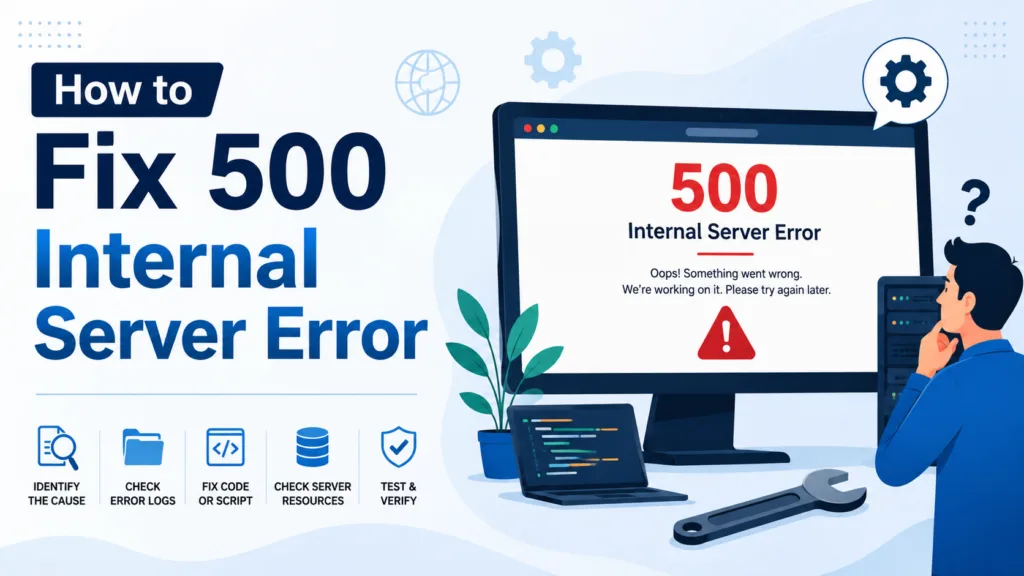
How to Fix 500 Internal Server Error: Start by checking recent website changes, then disable plugins, test your theme, check the .htaccess file, verify PHP compatibility, review server error logs, check memory and database issues, and contact your hosting provider if the problem continues. Always create a backup before making major changes.
A 500 Internal Server Error is one of the most common and frustrating problems website owners can face. Instead of loading the page normally, visitors may see a simple message such as “500 Internal Server Error”, “HTTP 500 Error”, or “The server encountered an internal error.”
The good news is that a 500 error does not usually mean your website is permanently broken. In most cases, the issue can be identified and fixed by checking the server, website files, database, plugins, themes, permissions, or recent changes.
For New Zealand businesses, resolving this error quickly is especially important. A website that is unavailable can affect customer enquiries, online sales, search visibility, trust, and your overall digital presence.
This guide explains what a 500 Internal Server Error means, why it happens, how to troubleshoot it step by step, and how to prevent it from happening again.
A 500 Internal Server Error is an HTTP status code that indicates something went wrong on the website’s server, but the server cannot provide a more specific explanation to the browser.
When someone visits your website, the browser sends a request to your hosting server. The server processes that request and sends the required webpage back to the visitor.
If the server encounters an unexpected problem while processing the request, it may return a 500 status code.
The important thing to understand is that the error is generally server-side, rather than being caused by the visitor’s internet connection.
A 500 error may appear as:
The exact wording depends on your hosting provider, web server, CMS, or application.
A temporary 500 error may not cause major problems if it disappears quickly. However, a persistent error can become a serious business and SEO issue.
Imagine a potential customer searches for your service, clicks your website, and receives an error page instead. They may immediately leave and choose another business.
For companies investing in web design Auckland, SEO, Google Ads, or social media marketing, website availability is particularly important because traffic campaigns are ineffective if visitors cannot access the site.
A prolonged server error can also affect:
This is why a 500 error should be investigated rather than ignored.
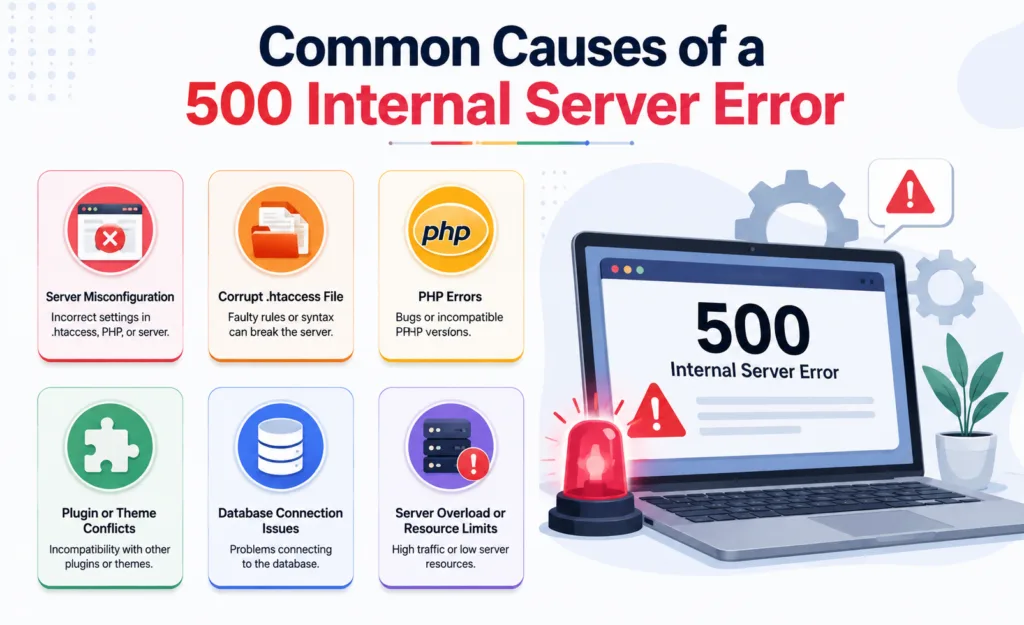
There is no single cause of a 500 error. The message is essentially a general indication that the server encountered an unexpected problem.
Here are some of the most common causes.
On Apache servers, the .htaccess file controls various server configuration rules.
A small syntax mistake in this file can prevent your website from functioning correctly.
This can happen after:
If the error appeared immediately after changing .htaccess, this file should be one of the first things you investigate.
Many websites, particularly WordPress websites, rely heavily on PHP.
If a PHP script encounters a fatal error, incompatible function, memory problem, or unexpected condition, the server may return a 500 error.
PHP problems can occur after:
Checking the server’s PHP error log is often one of the fastest ways to identify the underlying problem.
WordPress plugins add functionality to a website, but incompatible plugins can sometimes cause server errors.
For example, a newly installed plugin may conflict with:
If your website started showing a 500 error after installing or updating a plugin, temporarily turning off the suspected plugin can help identify the cause.
A poorly coded, outdated, or incompatible WordPress theme can also trigger server errors.
This is especially possible after:
Testing the website with a default WordPress theme can help determine whether the active theme is responsible.
Websites require server memory to execute PHP processes.
If a website uses more memory than the server allows, scripts may fail.
This can happen when a website has:
Increasing the PHP memory limit may resolve the problem, provided the hosting environment allows it.
Website files and folders need appropriate permissions so the server can read and execute them.
Incorrect permissions may occur after:
If permissions are too restrictive, the server may be unable to access important files.
If permissions are too open, they can also create security risks.
For this reason, permissions should be corrected carefully rather than changed randomly.
Sometimes the website itself is not the problem.
The hosting environment may have an issue involving:
If several websites hosted on the same server are experiencing errors at the same time, contacting the hosting provider should be a priority.
The best approach is to troubleshoot systematically. Avoid making several changes at once because this can make it difficult to determine what actually fixed the problem.
Start with the simplest solution.
Refresh the page and try opening it again.
You can also open the website in a private or incognito browser window.
Sometimes a temporary server issue resolves itself.
If the error continues, move on to the next step.
Try visiting several URLs.
For example:
If every page returns a 500 error, the issue may be related to server configuration, .htaccess, PHP, or a major website component.
If only one page fails, the problem could be related to a particular script, plugin, database query, or page configuration.
Think about what changed immediately before the error appeared.
Did you recently:
Recent changes can provide an important clue.
If the website worked normally before a particular change, temporarily reversing that change can help isolate the problem.
If your website uses Apache and you have access to its files, you can test whether .htaccess is causing the problem.
Connect through your hosting file manager or FTP and locate .htaccess.
Rename it temporarily, for example:
.htaccess-old
Then test your website.
If the website starts working, the .htaccess file is likely responsible.
For WordPress websites, you can then regenerate the default .htaccess rules by going to Settings → Permalinks in the WordPress dashboard and saving the settings.
Do not permanently delete a customised .htaccess file without checking whether it contains important redirects or security rules.
If you cannot access the WordPress dashboard, you can often turn off plugins through your hosting file manager.
Go to: wp-content/plugins
Rename the plugins folder temporarily, such as:
plugins-disabled
Then test the website.
If the website loads again, a plugin is probably causing the problem.
You can then restore the folder name and deactivate plugins individually to identify the specific plugin.
Once the problematic plugin has been identified, update it, replace it, or contact its developer.
If plugins are not responsible, your theme could be causing the problem.
A default WordPress theme can be activated to test this.
If the website works normally with the default theme, investigate the original theme for:
Always keep a backup before making significant changes to a live website.
Your website’s PHP version needs to be compatible with WordPress, plugins, themes, and custom code.
An outdated plugin may work on one PHP version but fail after the hosting company upgrades PHP.
Likewise, very old website code may stop working with newer PHP versions.
Check your hosting control panel for the current PHP version and compare it with the requirements of your website software.
If the error appeared after a PHP upgrade, compatibility should be investigated immediately.
If logs indicate a memory exhaustion problem, increasing the PHP memory limit may help.
For WordPress, this can sometimes be adjusted through configuration settings such as wp-config.php, hosting controls, or PHP configuration.
However, increasing memory is not always the best long-term solution.
If a website suddenly needs excessive memory, there may be an underlying issue such as:
The cause should be addressed rather than simply increasing server limits.
Error logs are among the most valuable resources when troubleshooting a 500 error.
Your hosting provider may provide logs through cPanel, Plesk, a hosting dashboard, or another server management system.
Look for entries mentioning:
For example, if the log identifies a particular plugin file immediately before the 500 error, you have a strong starting point for troubleshooting.
A website may also experience server errors when it cannot communicate correctly with its database.
For WordPress, this may involve MySQL or MariaDB.
Database-related problems can result from:
If your website has recently been migrated, database credentials and configuration should be checked carefully.
If the problem started after a major change and you have a reliable backup, restoring the website to a working version may be the quickest solution.
However, do not restore unquestioningly.
First, identify what may have caused the problem so you do not immediately recreate the same issue.
Make sure you have a recent backup of:
A backup strategy is one of the most effective ways to reduce downtime.
Sometimes the problem is outside your direct control.
Contact your hosting provider if you suspect:
Give the hosting team the exact error, affected URL, approximate time the issue started, and any relevant changes you made.
This allows them to investigate the server logs more efficiently.
WordPress websites have several common troubleshooting routes.
A practical order is:
This method helps avoid unnecessary changes to the website.
For businesses using Website Design NZ services, it is also worth ensuring that the website is built using properly maintained themes, plugins, hosting configurations, and development practices from the beginning.
Also read: Error Establishing a Database Connection
An update-related 500 error usually points towards compatibility.
For example, you may update WordPress while using an old plugin that has not been updated for the latest WordPress or PHP environment.
Instead of updating everything directly on the live website, use a staging environment whenever possible.
A staging website allows developers to test:
before making changes to the live website.
This can significantly reduce unexpected downtime.
Fixing the current problem is only half the job. Good website management should also reduce the chance of the same issue happening again.
Keep WordPress core, themes, and plugins updated.
However, updates should be tested where possible instead of automatically applying major changes to a critical production website.
Every unnecessary plugin adds another potential compatibility and security consideration.
Remove plugins that are no longer required instead of simply leaving them inactive.
Cheap hosting is not always a bargain if your website frequently experiences downtime or resource limitations.
Choose hosting with:
Backups should be automated and stored separately from the live website where possible.
A backup is particularly valuable before:
Monitor Website Uptime
Website monitoring tools can notify you when your website becomes unavailable.
This is particularly useful for businesses that depend on their website for enquiries or online sales.
Professional Website Maintenance Services can help businesses monitor updates, backups, security, performance, and technical issues before they become larger problems.
For many businesses, preventative maintenance is considerably easier than recovering a website after a major server failure.
A 500 error can sometimes be fixed with a simple plugin rollback or .htaccess correction.
However, you should consider professional help if:
A professional developer can inspect logs, test the server environment, identify conflicts, and restore the website while reducing the risk of making the situation worse.
For example, i2D can help businesses approach website problems systematically rather than making random changes that may create additional issues.
Also read: Payment Gateway Integration
A 500 Internal Server Error does not necessarily mean your website is permanently damaged. It is a general server-side error that can have several different causes, so the most effective solution is systematic troubleshooting.
Start with recent changes and simple checks. Then investigate .htaccess, plugins, themes, PHP compatibility, memory limits, permissions, databases, and server logs. If the problem is related to hosting or advanced server configuration, your hosting provider or a qualified developer can help identify the underlying cause.
Most importantly, do not wait until a small technical problem becomes a major outage. Regular updates, backups, monitoring, security checks, and preventative maintenance can keep your website more stable and reliable for customers across New Zealand.
Yes, many basic 500 errors can be fixed without a developer. Start by checking recent changes, disabling plugins, testing the theme, checking .htaccess, and reviewing server error logs. More complex server or coding problems may require professional assistance.
Usually, no. A 500 Internal Server Error generally means the website server encountered a problem while processing the request. Your internet connection may still be working normally.
Yes. A plugin can cause a 500 error if it has a PHP compatibility problem, conflicts with another plugin or theme, contains faulty code, or uses excessive server resources. Temporarily disabling plugins can help identify the cause.
A temporary error may have little lasting impact, but repeated or prolonged 500 errors can cause SEO problems. Search engines need reliable access to your pages for crawling and indexing. Persistent server errors can therefore contribute to reduced visibility and lost organic traffic.
Your website may contain outdated code that is incompatible with the new PHP version. Plugins, themes, or custom scripts can also cause compatibility problems. Checking error logs and testing the website components can help identify the affected code.
Use reliable hosting, maintain regular backups, keep WordPress and its components updated, remove unnecessary plugins, monitor uptime, test major changes on staging, and perform regular technical maintenance.
 Development
When browsing websites or using mobile apps, you’ve likely encountered the terms UI and UX. These buzzwords appear everywhere in the digital world, yet many...
Read More SEO
SEOGoogle’s search algorithms are always changing, so anyone who wants to do SEO well needs to know what E-E-A-T means. This new framework adds Experience...
Read More SEO
SEOYour online presence can be made or broken by the right SEO Auckland agency. There are hundreds of agencies that say they are the best....
Read More